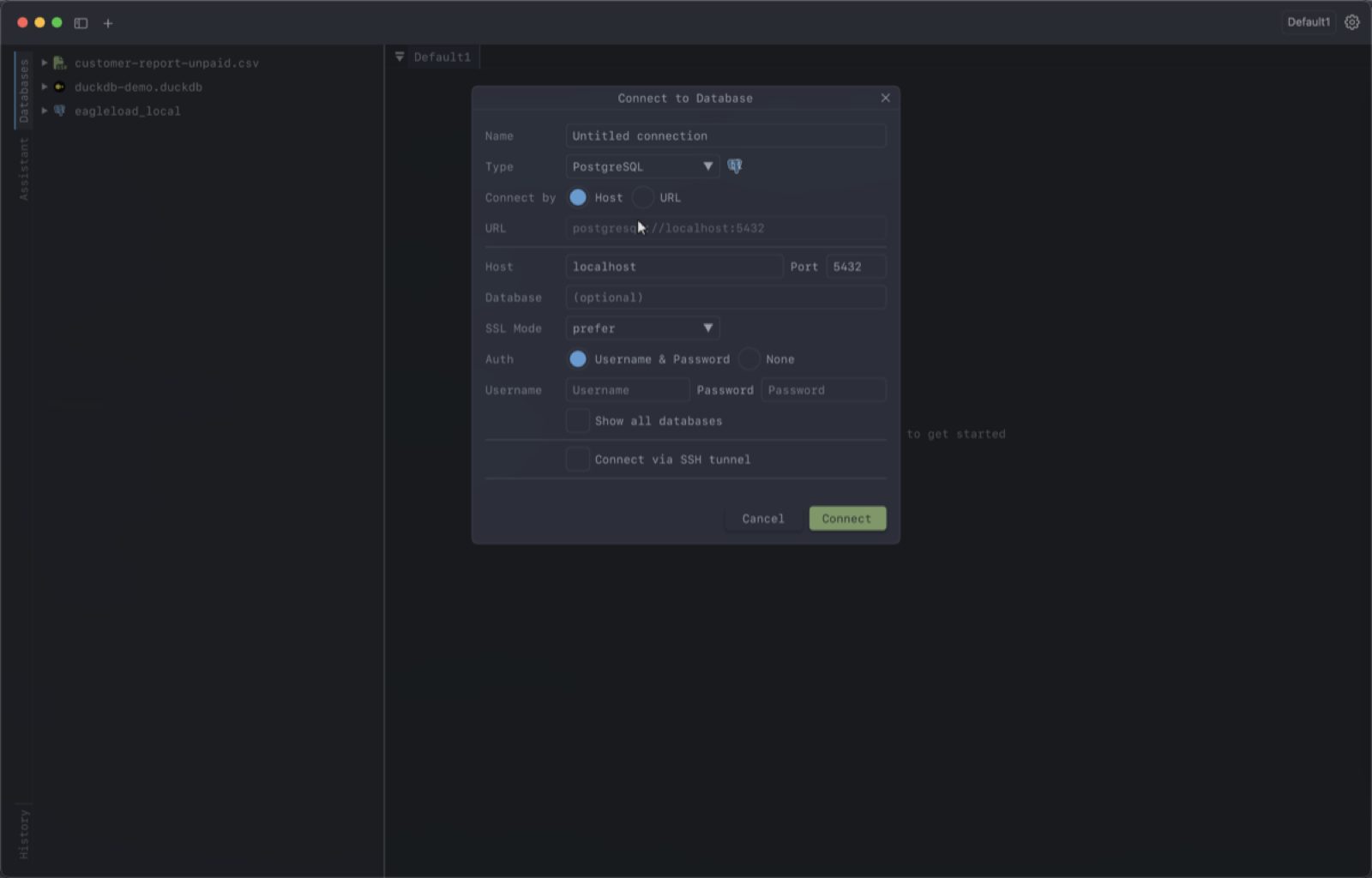
Right-click the sidebar and choose Add Database Connection, or use the + in the title bar.
Supported databases
| Engine | Notes |
|---|---|
| SQLite | Single file; pick it with the file browser |
| DuckDB | Single file, and the engine behind CSV support |
| PostgreSQL | Databases and schemas |
| Redshift | Uses the PostgreSQL backend |
| MySQL / MariaDB | One backend covers both |
| MongoDB | Collections instead of tables |
| Redis | Keys, with a command console and pub/sub |
| SQL Server | Databases and schemas |
| Oracle | Downloads the Instant Client on first use if it’s missing |
| Cassandra | Keyspaces |
File-based databases only need a path. Server databases take the usual host, port, user, password and database.
Connecting
Connections are lazy: adding one saves it, and expanding it in the sidebar is what actually connects. If a connection fails, the error from the driver is shown in place under the node rather than in a dialog you have to dismiss.
Refresh on a connection reconnects and reloads its schema. Disconnect closes it without removing it.
Read-only connections
Tick Read-only connection in the dialog to stop the app writing to that database. It applies to every engine, including SQLite and DuckDB files, and is remembered with the connection. The database tools respect it too: an agent can’t change a read-only connection, even with your approval.
With it on:
- The SQL editor runs
SELECT,SHOW,EXPLAIN,DESCRIBE,WITHandPRAGMA, and refuses anything else with an explanation instead of executing it. - Table data can’t be edited, and the add, duplicate and delete row buttons are disabled.
This guards against slips — a stray edit in the grid, a DELETE you meant to run somewhere else. It is not a security boundary: it stops DearSQL from issuing the statement, but it doesn’t change what your database user is allowed to do. For a real guarantee on production, connect as a user with only SELECT granted.
SSL / TLS
Every server backend supports encryption, with the modes that engine actually offers:
| Backend | Modes |
|---|---|
| PostgreSQL | disable, allow, prefer, require, verify-ca, verify-full |
| MySQL / MariaDB | disable, prefer, require, verify-ca, verify-full |
| MongoDB, Redis | Off, TLS, TLS + Verify CA |
The default is prefer where the engine has one — encrypted if the server supports it, without failing if it doesn’t. Choosing verify-ca or verify-full reveals a field for your CA certificate.
SSH tunnels
Any server connection can be routed through a bastion host. Enable SSH tunnel in the connection dialog and give the host, port and user; DearSQL forwards a local port and connects the database through it.
Authenticate with a password or a private key (with a passphrase if it has one). The host field autocompletes from your ~/.ssh/config, so an alias you already use will work.
The tunnel uses your system ssh, so your existing config, keys and known hosts apply. It’s opened when the connection opens and closed with it.
How credentials are stored
Saved connections live in ~/.dearsql/connections.db. Passwords — for both the database and SSH — are encrypted with AES-256-GCM using a key derived from a per-install secret held in your operating system’s keystore: Keychain on macOS, Credential Manager on Windows, Secret Service on Linux, with a 0600 file as fallback.
DearSQL never writes credentials to disk in plain text, and the encrypted values are useless without the keystore entry.