A chat about your database is only useful if the assistant knows your schema. DearSQL doesn’t dump everything into every message — you choose what to attach.
Pinning context with @
Type @ anywhere in the message box to open the context picker. It lists, across every connected database:
- Databases and schemas
- Tables
- Views
- Sequences
Filter by typing; the picker matches both the object name and the database it belongs to. Move with the arrow keys, accept with Tab or Enter, or click. Press Escape to dismiss.
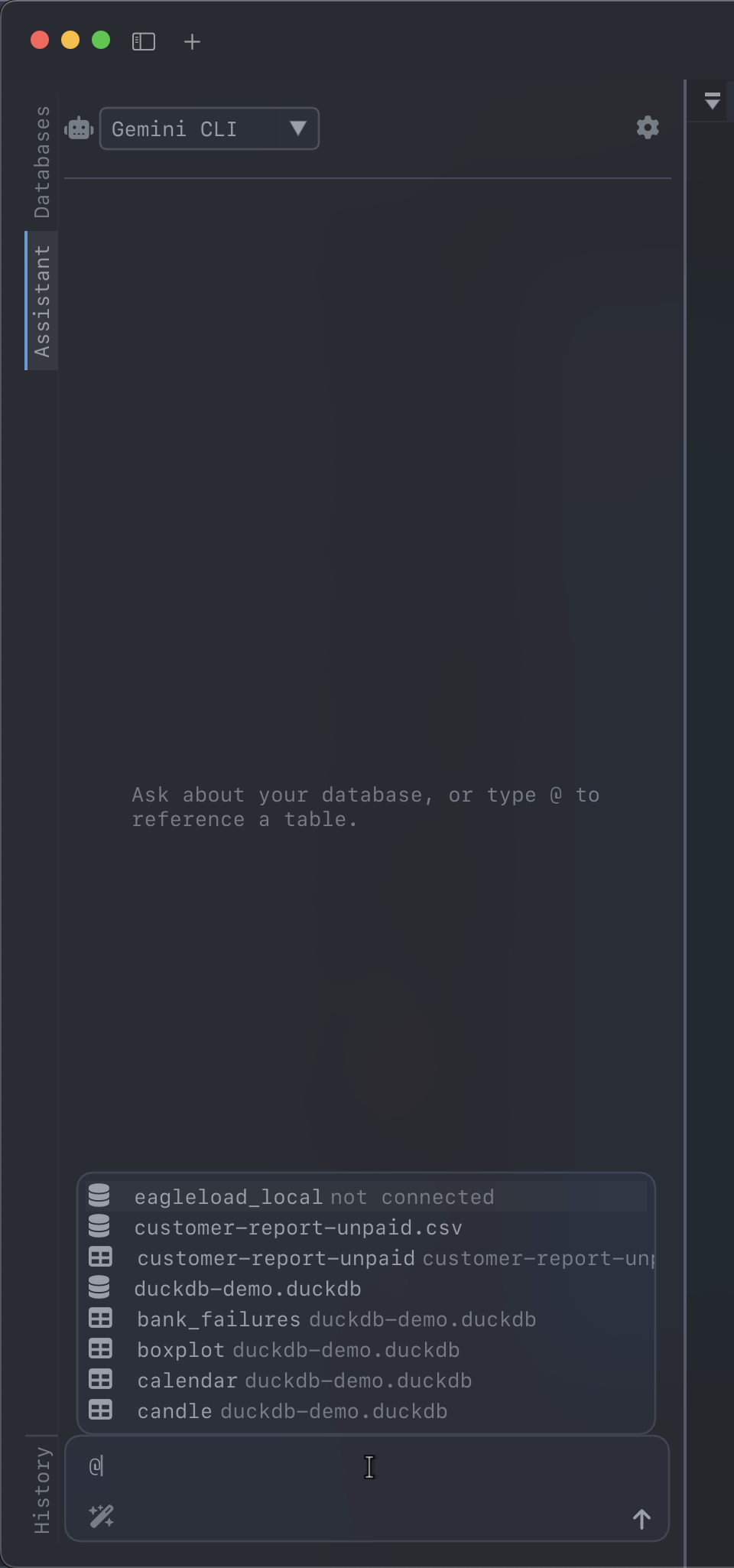
Each pick becomes a chip above the message box. Click the × on a chip to drop it.
Saved connections that aren’t open yet appear too. Pinning one tells the agent the connection exists and that it can open it itself — see Database tools.
What actually gets sent
When you hit Enter, each chip is resolved to real content and attached to the message:
- A table or view becomes its definition: every column with its type, primary keys,
NOT NULL, and foreign keys. - A database becomes a schema overview — its tables and their columns.
- A closed connection becomes a note telling the agent to open it first.
Your message shows a small context: … line recording what went with it. Chips are cleared after sending, so the same schema isn’t re-sent on every turn.
If you pin nothing, DearSQL sends a short schema overview of the current database with your first message, and nothing schema-related after that.
Commands with /
Type / as the first character of a message to open the command picker. It only triggers at the start, so a path or a date in the middle of a sentence won’t set it off.
The list combines DearSQL’s own commands with whatever the agent publishes — Claude Code, for example, exposes dozens.
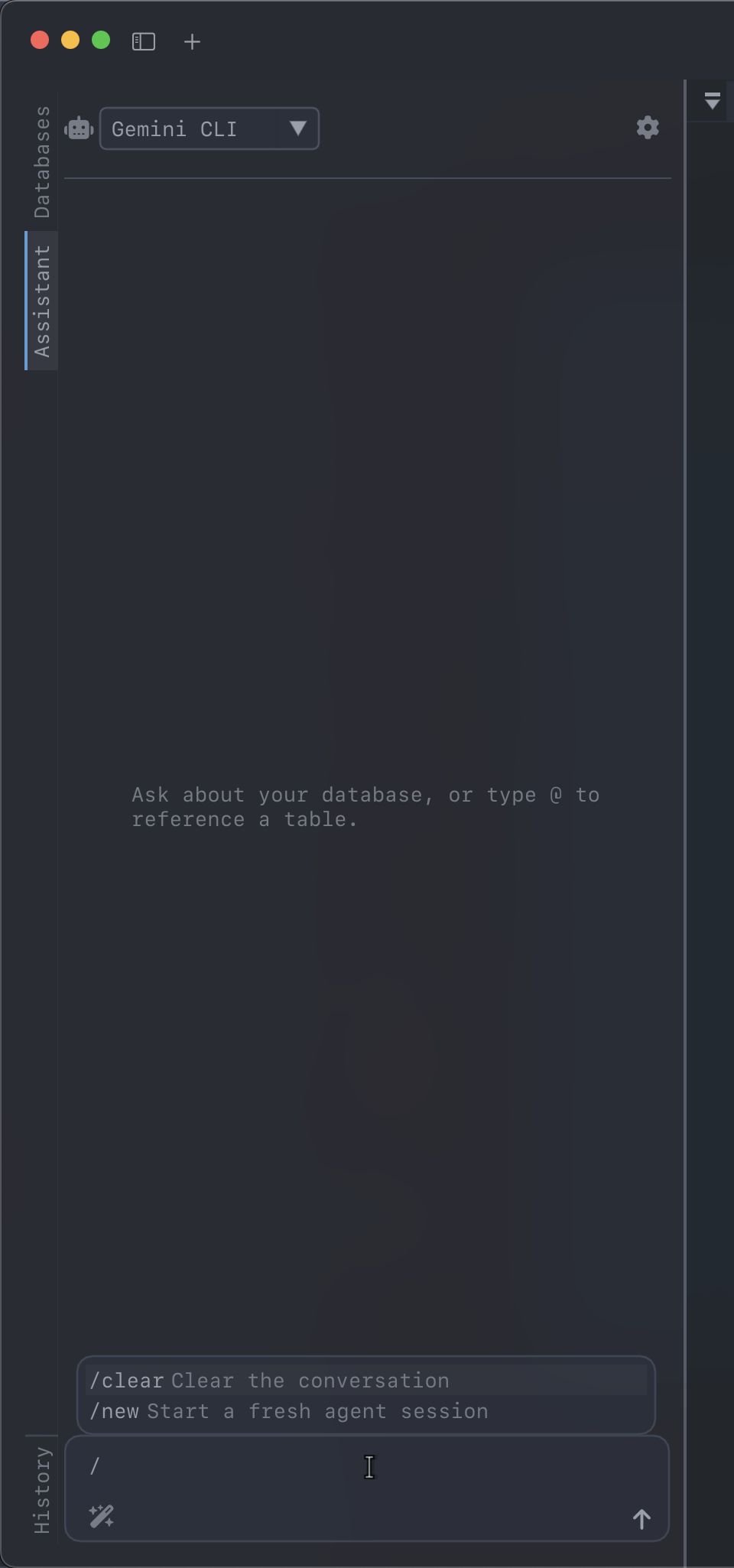
| Command | What it does |
|---|---|
/new |
Starts a fresh agent session |
/clear |
Clears the conversation and any pinned context |
| agent commands | Inserted into the box as /name , so you can add arguments |
DearSQL’s commands run immediately and clear the box. An agent command is just prompt text: it’s placed in the box for you to complete, then sent normally when you press Enter.
Agent commands only appear once a session is running. Opening the picker starts the agent if it isn’t up yet, so give it a moment on the first use.
Writing longer messages
The message box grows as you type, up to eight lines, then scrolls.
- Enter sends.
- Shift+Enter inserts a newline.