DearSQL is one program with several ways in:
| Command | What it does |
|---|---|
dearsql |
Opens the app |
dearsql my.db |
Opens the app with that file |
dearsql --tui |
Browse and query in the terminal |
dearsql --mcp |
Gives a coding agent your database tools |
dearsql --lsp |
SQL completion and hover in your editor |
dearsql --version |
Prints the version |
Installing from a terminal
On macOS (Apple silicon) and Linux (x86_64 or ARM64), one command installs the app and the dearsql command, with no prompts, so a coding agent can run it too:
curl -fsSL https://dearsql.dev/install.sh | sh- On macOS it puts DearSQL.app in
/Applications(or~/Applicationsif that folder isn’t writable), after checking the download is signed by DearSQL’s developer, and links~/.local/bin/dearsqlto it. - On Linux it installs the AppImage as
~/.local/bin/dearsql, after checking its SHA-256, and adds a desktop entry.
Run it again to update. If ~/.local/bin isn’t on your PATH, the script prints the line to add. Check the install with dearsql --version.
On Windows, download the MSI from the home page.
Installing the dearsql command from the app
If you installed the app by hand, open Settings (the gear in the title bar) and click Install ‘dearsql’ Command under Command Line.
- On macOS this links
/usr/local/bin/dearsqlto the app. If that folder needs administrator rights, macOS asks for your password once. - On Linux it links
~/.local/bin/dearsqlto the AppImage. Make sure~/.local/binis on yourPATH.
If you move the app later, click the button again to point the command at the new location.
The terminal UI
dearsql --tui                                   # pick from your saved connections
dearsql --tui "Production"                      # open a saved connection by name
dearsql --tui postgres://me@localhost/shop      # or a connection URL
dearsql --tui ~/data/orders.duckdb              # or a SQLite, DuckDB or CSV file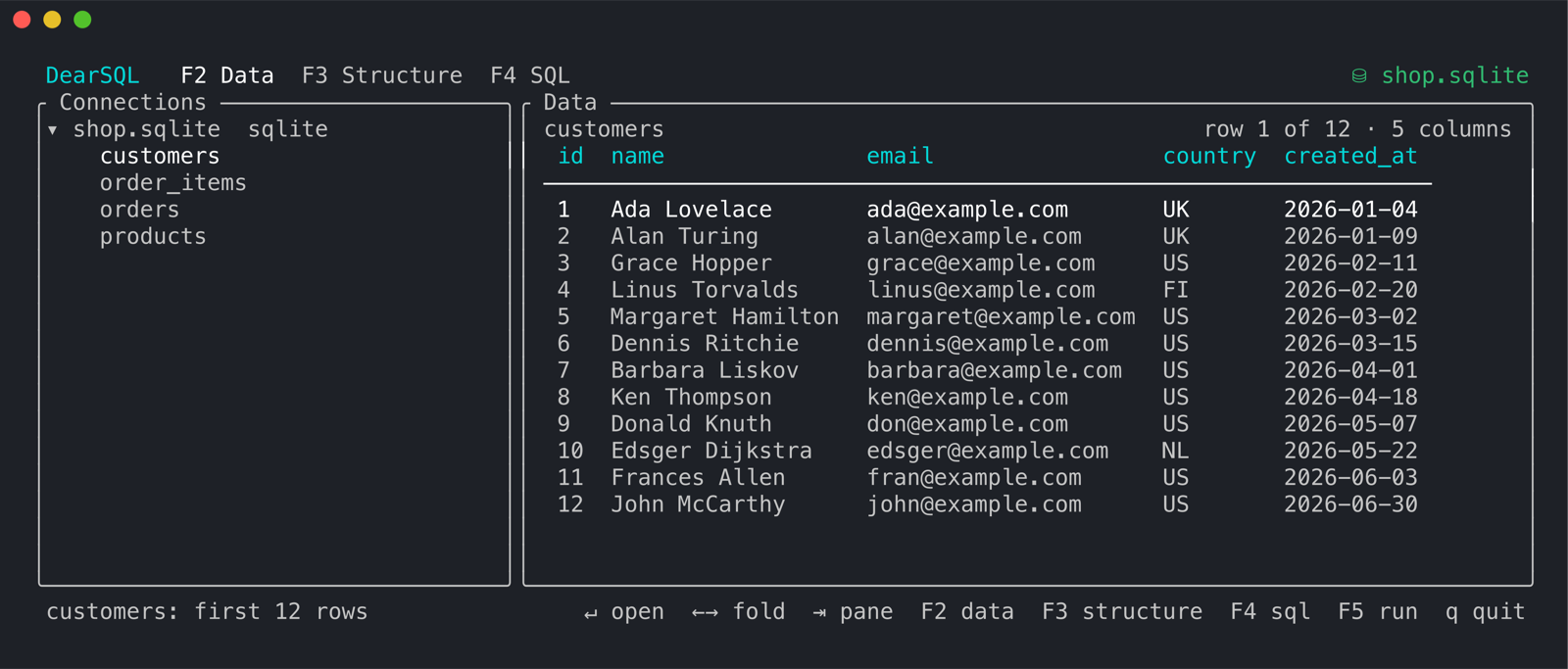
The left pane is the same tree as the app’s sidebar: connections, databases, schemas, tables. Use the arrow keys to move, → to expand, ← to collapse, and Enter to open a table.
The right pane has three tabs:
- F2 Data shows the table’s rows. Scroll them with the arrow keys and Page Up/Page Down.
- F3 Structure shows columns, keys, indexes and foreign keys.
- F4 SQL is a query editor. F5 runs it against the database you last opened. Ctrl+Space shows completions for keywords, tables and columns, the same ones the app suggests; the list also opens by itself after a
., sou.afterFROM users ulists the columns ofusers. While the list is open, ↑/↓ pick an entry, Tab or Enter inserts it, and Esc closes it.
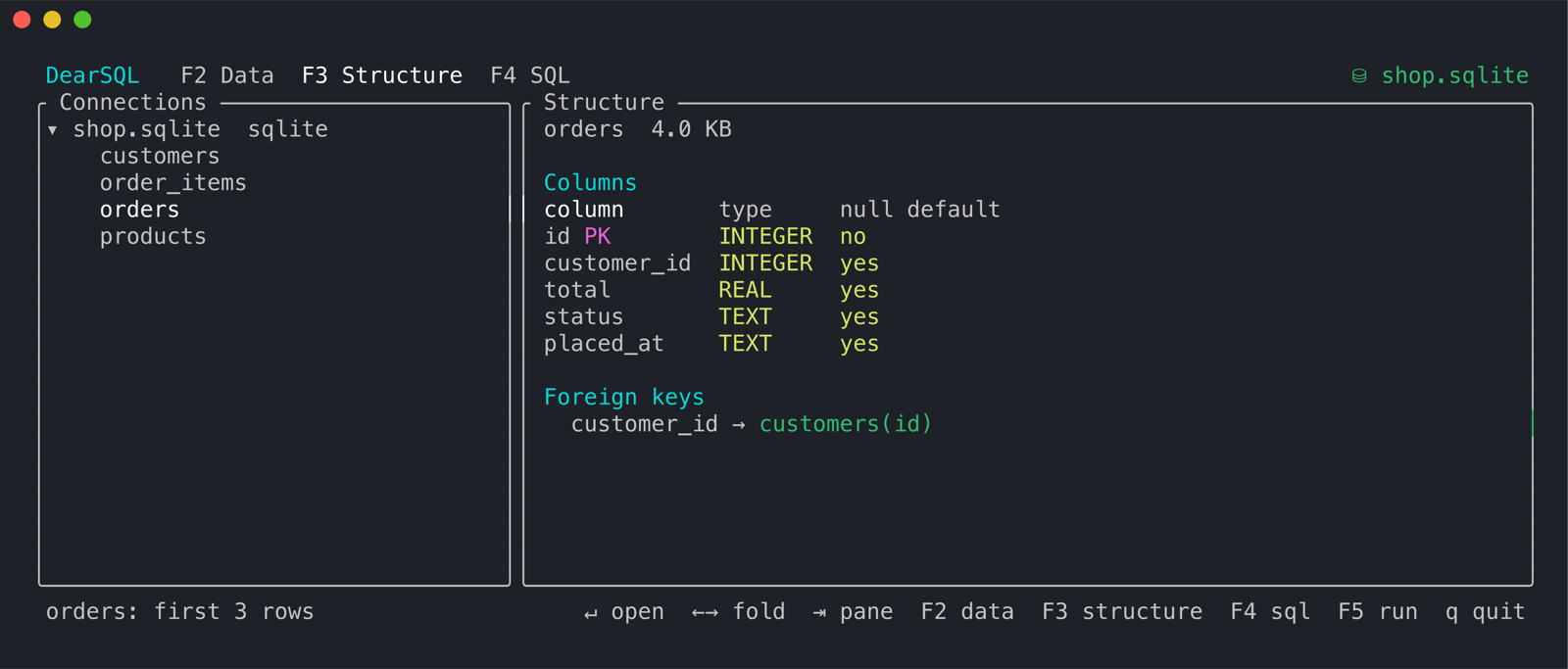
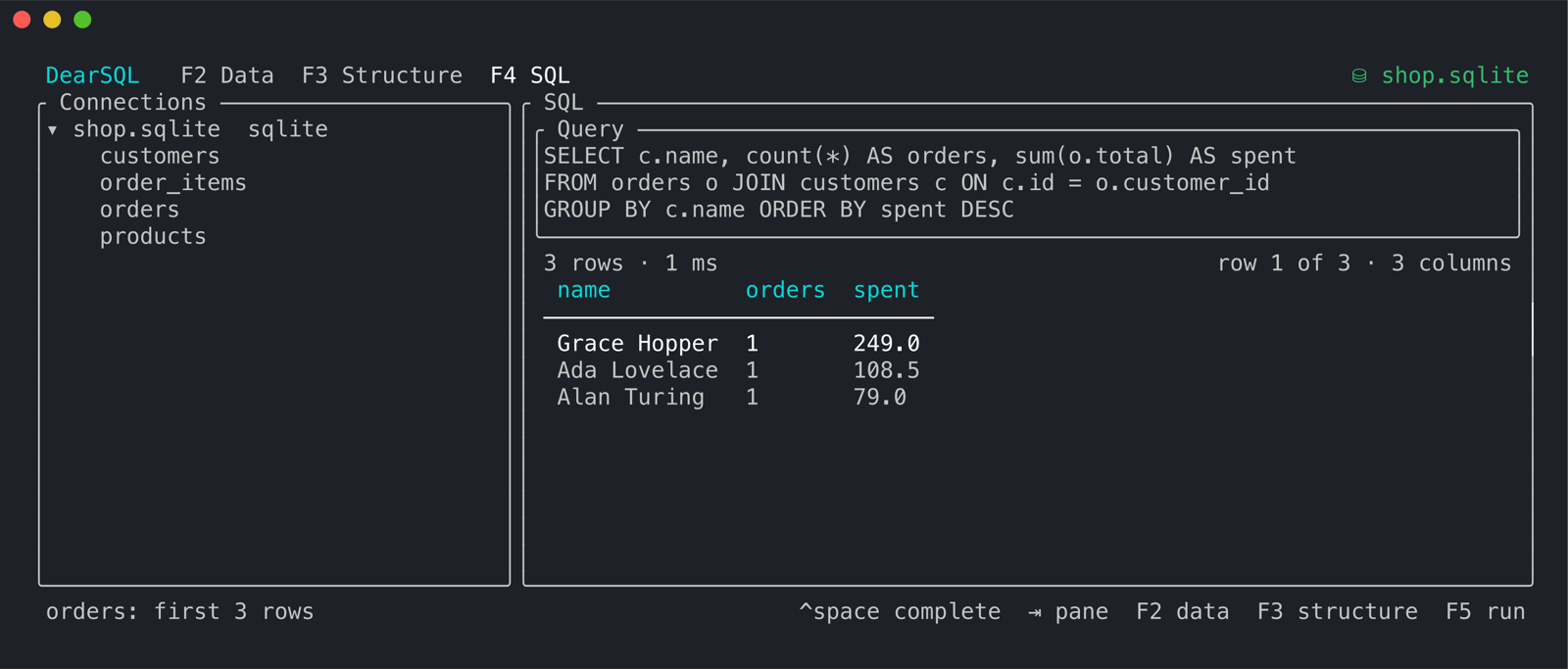
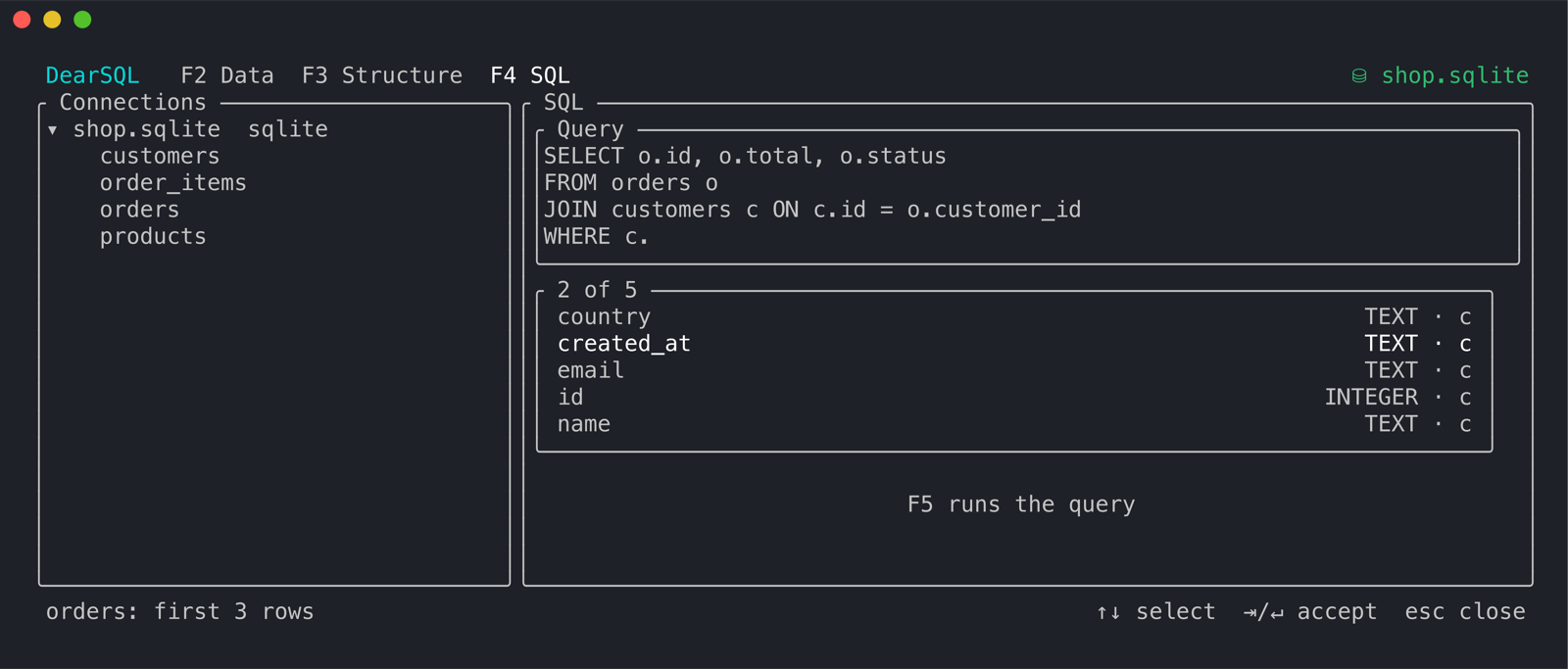
Tab switches between the panes (when no completion list is open), and q quits.
Your saved connections, passwords and SSH tunnels are the app’s own, so anything that connects in the app connects here too.
Database tools for your coding agent
dearsql --mcp runs the same database tools the assistant chat uses, for any agent that speaks MCP — Claude Code, Codex, Cursor and others:
claude mcp add dearsql -- dearsql --mcp
codex mcp add dearsql -- dearsql --mcp
Or let the agent set itself up: ask it to “read https://dearsql.dev/llms.txt, install DearSQL and register its MCP server”. That file links every docs page as plain markdown (add .md to any docs URL, or fetch them all at once from /llms-full.txt).
The agent can then search your schema, describe tables and run read-only queries against your saved connections, opening them when it needs one. To limit it to a single database, name it after --mcp:
claude mcp add shop -- dearsql --mcp postgres://me@localhost/shopUnlike the app, there is no approval button here: writes are rejected unless you allow them (below). Results come back a page at a time, as in the app.
Letting the agent make changes
To let the agent run INSERT, UPDATE, DELETE or schema changes, add --allow-writes:
claude mcp add dearsql -- dearsql --mcp --allow-writesThis adds an execute_sql tool, marked as destructive. Agents such as Claude Code and Codex ask you to approve each call and show you the statement, so check it before you approve. Don’t set the tool to always allowed. The agent still reads through run_query, which stays read-only. Without the flag, execute_sql doesn’t exist.
SQL completion in your editor
dearsql --lsp is a language server for .sql files. Point your editor at it and you get the same schema-aware completion as the app’s SQL editor — tables, columns, aliases, CTEs — against your saved connections, plus hover: a table shows its columns, a column shows its type, whether it allows NULL, whether it is a primary key, and the table a foreign key points to. Tables and columns in the completion list carry the same details.
Completion pops up as you type and after a ., so u. after FROM users u lists the columns of users.
Choosing the database
The server needs to know which database a file is written against. It takes the first of these that is set:
- A comment on the first line of the file, which lets each file pick its own:
-- dearsql: Production/shop
select * from orders where ...- A connection picked while the server runs with the
switchConnectionsorswitchDatabasecommand (below). - A connection named on the command line:
dearsql --lsp "Production". initializationOptionsfrom the editor config:{ "connection": "Production", "database": "shop" }.
The comment always wins, so one file can point somewhere else than the rest of the project.
The part after the / is the database and can be left out. For PostgreSQL and SQL Server it can also name a schema, as in Production/shop.sales. A relative file path in the comment is read from the file’s folder. Like --tui, a connection can be a saved connection’s name, a connection URL, or the path of a SQLite, DuckDB or CSV file. Passwords and SSH tunnels come from the app, so anything that connects there connects here too.
The schema is read once and kept for two minutes, so a table you just created shows up after that. If the connection fails, the editor shows a warning once and completion falls back to SQL keywords. The server logs to stderr, which most editors put in their LSP log.
Switching connections
The server answers the same workspace/executeCommand commands as sqls, so editor plugins and key bindings made for it work here too:
| Command | Argument | What it does |
|---|---|---|
showConnections |
— | Lists your connections, one per line, with * after the current one |
switchConnections |
a connection name, URL or file, or its number from showConnections |
Uses that connection from now on |
showDatabases |
— | Lists the databases on the current connection |
switchDatabase |
a database name (shop, or shop.sales for a schema) |
Uses that database on the current connection |
showTables |
— | Lists the tables and views completion knows about |
A switch lasts until the server stops. It replaces the command-line connection and initializationOptions, but a file with a -- dearsql: comment still uses its own.
In Neovim 0.11, for example: :lua vim.lsp.get_clients({ name = 'dearsql' })[1]:exec_cmd({ title = '', command = 'switchConnections', arguments = { 'Staging' } }).
Coming from sqls or sql-language-server
There is no separate config file: connections are the ones saved in the app, with their passwords and SSH tunnels.
- sqls
config.ymlconnections: save each one in the app (or pass a URL), then useconnectionininitializationOptionsor the command line. The first entry being the default becomesdearsql --lsp "<name>". - sql-language-server
.sqllsrc.json(a project’sconnection): use a-- dearsql:comment in the files instead, orinitializationOptionsin the project’s editor config. ItsswitchDataBaseConnectioncommand isswitchConnectionshere.
Neovim (0.11+)
vim.lsp.config('dearsql', {
  cmd = { 'dearsql', '--lsp' },
  filetypes = { 'sql' },
  init_options = { connection = 'Production', database = 'shop' },
})
vim.lsp.enable('dearsql')
Neovim does not show completion as you type on its own; use a completion plugin, or turn on the built-in one when the server attaches:
vim.api.nvim_create_autocmd('LspAttach', {
  callback = function(args)
    vim.lsp.completion.enable(true, args.data.client_id, args.buf, { autotrigger = true })
  end,
})
K shows the hover.
Helix
In ~/.config/helix/languages.toml:
[language-server.dearsql]
command = "dearsql"
args = ["--lsp"]
config = { connection = "Production", database = "shop" }

[[language]]
name = "sql"
language-servers = ["dearsql"]
Helix sends config as the initializationOptions.
VS Code
VS Code needs an extension to run a language server it does not know. With Generic LSP Client installed, add to settings.json:
{
  "glspc.serverCommand": "dearsql",
  "glspc.serverCommandArguments": ["--lsp"],
  "glspc.languageId": "sql",
  "glspc.initializationOptions": { "connection": "Production", "database": "shop" }
}
Emacs (eglot)
(with-eval-after-load 'eglot
  (add-to-list 'eglot-server-programs
               '(sql-mode . ("dearsql" "--lsp"
                             :initializationOptions (:connection "Production" :database "shop")))))
Then M-x eglot in a SQL buffer, or add eglot-ensure to sql-mode-hook.
Zed
Zed only starts language servers that an extension registers, so dearsql --lsp cannot be added from settings.json alone yet.