Exporting a table
Right-click a table and choose an export format:
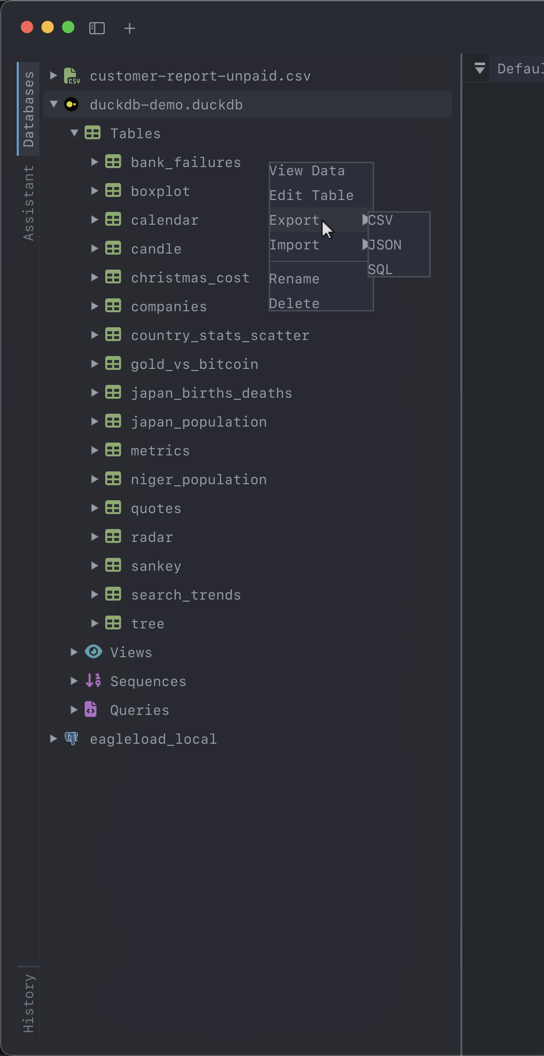
| Format | Good for |
|---|---|
| CSV | Spreadsheets, and anything that eats delimited text |
| JSON | Feeding an API or a script |
| SQL | The table’s CREATE TABLE followed by INSERT statements, to recreate it elsewhere |
| DDL (structure only) | Just the CREATE TABLE and its indexes — for a pull request, a design doc, or setting up another environment |
| Markdown | Pasting into a pull request, an issue, or notes |
| HTML | A standalone page you can open in a browser or paste into a document |
Markdown escapes pipes and turns newlines into <br>, so a table with awkward content still renders. HTML is written as a complete, self-contained document rather than a bare fragment.
Selecting several tables exports them all — one file each into a folder you pick, except SQL and DDL, which write a single file.
To grab one table’s definition without saving a file, choose Copy DDL from the same menu; it goes straight to the clipboard. The inspector’s DDL tab shows it too.
An export runs in the background, so the app stays usable while a large table is written. A progress panel at the bottom of the window counts tables and rows, and its Cancel button stops the export (the file left behind is incomplete). When it finishes you get a summary of what was written.
SQL dumps
MySQL and PostgreSQL databases can be dumped to, and restored from, plain SQL — from the database’s context menu.
This runs inside DearSQL. You don’t need mysqldump, pg_dump or a matching client version on your machine, which is usually the thing that makes dumps annoying.
The PostgreSQL exporter follows the same ordering pg_dump uses — schema first, then data, then constraints and indexes — so the output restores cleanly rather than tripping over foreign keys. Data is streamed with COPY, which is considerably faster than a file full of INSERTs.
A dump runs in the background with a progress panel and a Cancel button. While one is running, actions that would tear the connection out from under it — editing the connection, disconnecting, removing it — are disabled with a note explaining why.
Importing shows a preview of what the file contains before anything runs.
PostgreSQL additionally keeps the external Backup and Restore menus, which shell out to pg_dump and pg_restore if you’d rather use the real thing.
CSV files
Open a CSV directly with Open CSV File… in the sidebar’s context menu. DearSQL loads it through DuckDB, so the file behaves like a table: browse it, sort it, filter it, and run SQL against it.
Tables can also be imported from a CSV file, from the table’s context menu. The first line of the file must name the columns; empty values are inserted as NULL. The import runs in the background with a progress panel and a Cancel button. Rows are sent in batches, and a row the database rejects is skipped rather than stopping the import. The summary at the end reports how many rows were inserted, how many failed, and the first error. Rows inserted before a cancel stay in the table.