Open an editor from a database’s context menu — New SQL Editor — or from a table. Each editor is a tab bound to one database, shown in the header so you always know what you’re about to run against.
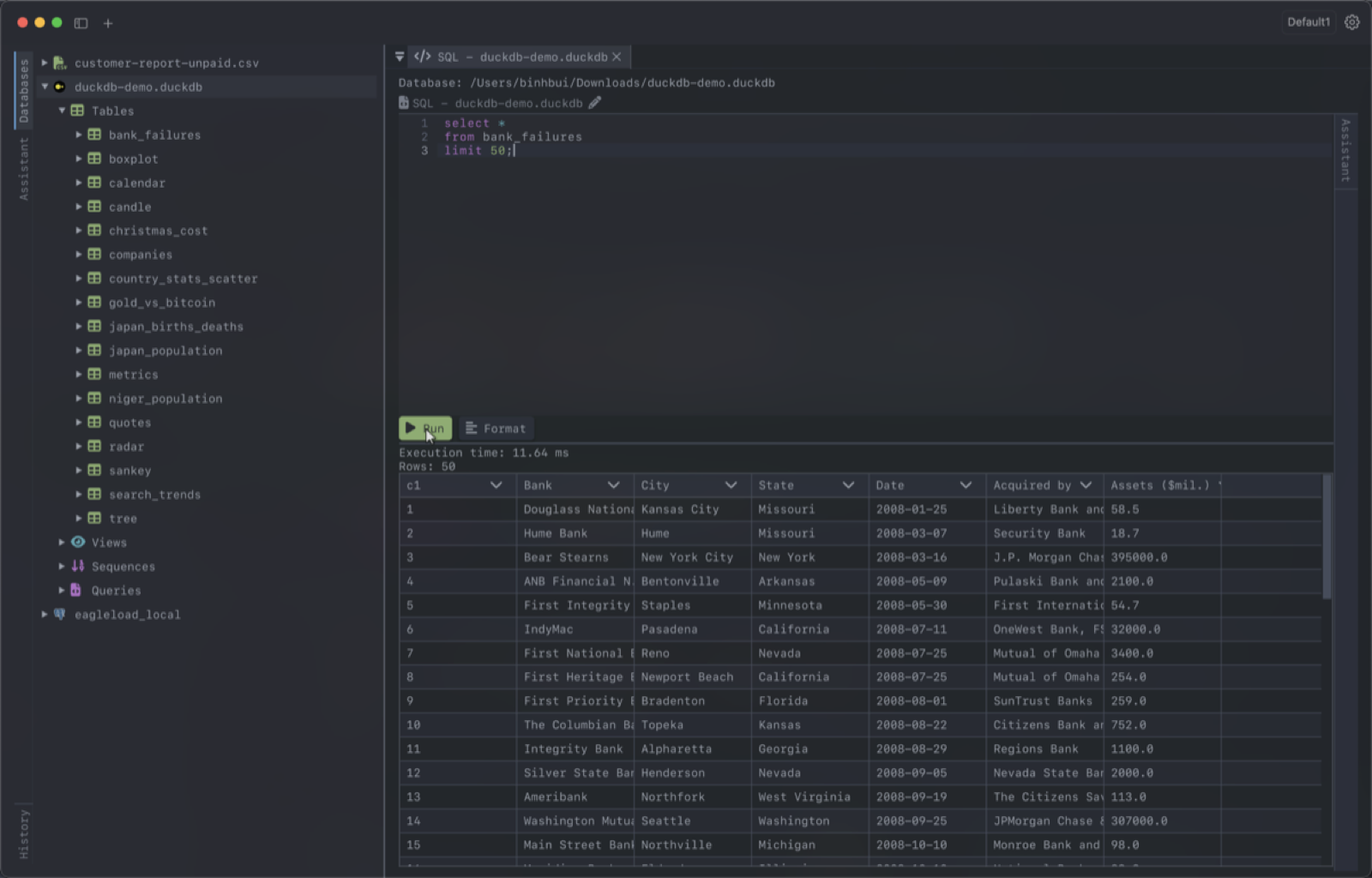
Running
Run executes the whole buffer. If you have text selected, it runs only the selection — handy for stepping through a long script one statement at a time.
While a query runs the button becomes Cancel, so a slow query never locks up the app; DearSQL keeps rendering and you can keep working in other tabs.
Multi-statement scripts are supported. Each statement’s result comes back separately, so a script that mixes SELECTs with UPDATEs shows both the rows and the affected-row counts, in order.
Writing
The editor has syntax highlighting, and autocomplete that reads the statement you are writing against the connected database’s schema:
- Aliases: after
FROM users u, typingu.lists the columns ofusers. - CTEs and subqueries:
WITH recent AS (...)andFROM (SELECT ...) tofferrecentandtas tables, with the columns they produce. - The current statement only: in a script with several statements, suggestions come from the one under the cursor.
- Not in strings or comments: nothing pops up while you type inside quotes or after
--. - Your database’s dialect: keywords and functions match the engine, so
ILIKEis offered on PostgreSQL but not on MySQL. - Quoting: a name that needs quotes, such as one with spaces or capitals on PostgreSQL, is inserted already quoted.
- Types: columns are listed with their type.
While the completion popup is open:
- Up / Down move through the suggestions
- Tab or Enter accepts
- Escape dismisses
The same completion works outside the app: in the terminal UI’s SQL tab, and in Neovim, Helix, VS Code or Emacs through dearsql --lsp.
Format reformats the buffer — indentation, keyword casing, and line breaks — using the same tree-sitter grammar that drives the highlighting, so it understands the statement rather than guessing with regexes.
Syntax problems are underlined as you type, without running anything.
Scripts
An editor can be saved as a script with Cmd+S (Ctrl+S on Linux and Windows). Scripts live in ~/.dearsql/scripts as ordinary .sql files — nothing proprietary, so you can keep them in a git repo or edit them elsewhere.
A saved script remembers the connection, database and schema it was written against, and reopens against the same place.
Results
Results appear below the editor in the same grid used for browsing tables, so sorting, resizing and copying behave identically. Every executed query is added to History, the collapsible panel at the bottom of the sidebar, with its row count and duration.
Assistant
Each editor also has its own AI chat panel for quick “write me this query” work, separate from the assistant chat you open from a connection. Code blocks it produces have an Insert button that drops the SQL straight into the editor.