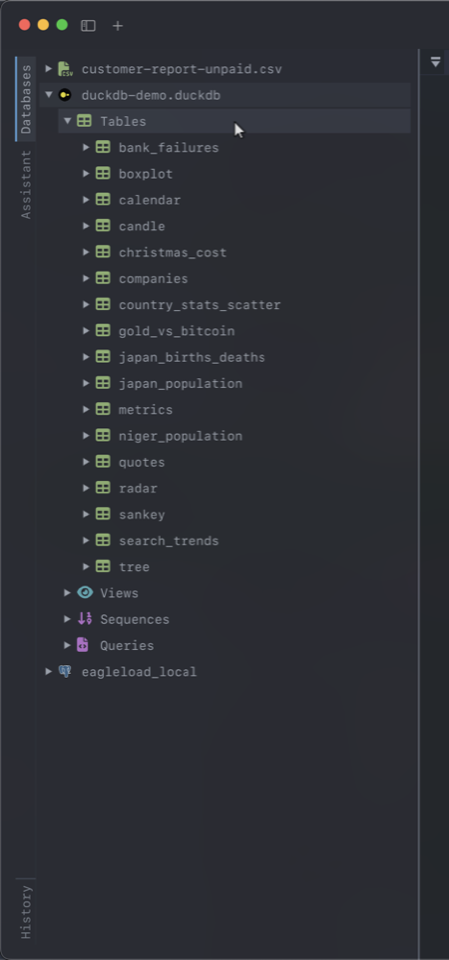
The Databases tab in the sidebar is a tree. Expanding a connection opens it and loads what’s inside — databases, then schemas where the engine has them, then tables, views and sequences. Everything loads in the background, so a server with hundreds of databases doesn’t freeze the window.
Double-click a table to open it in a viewer tab.
The grid
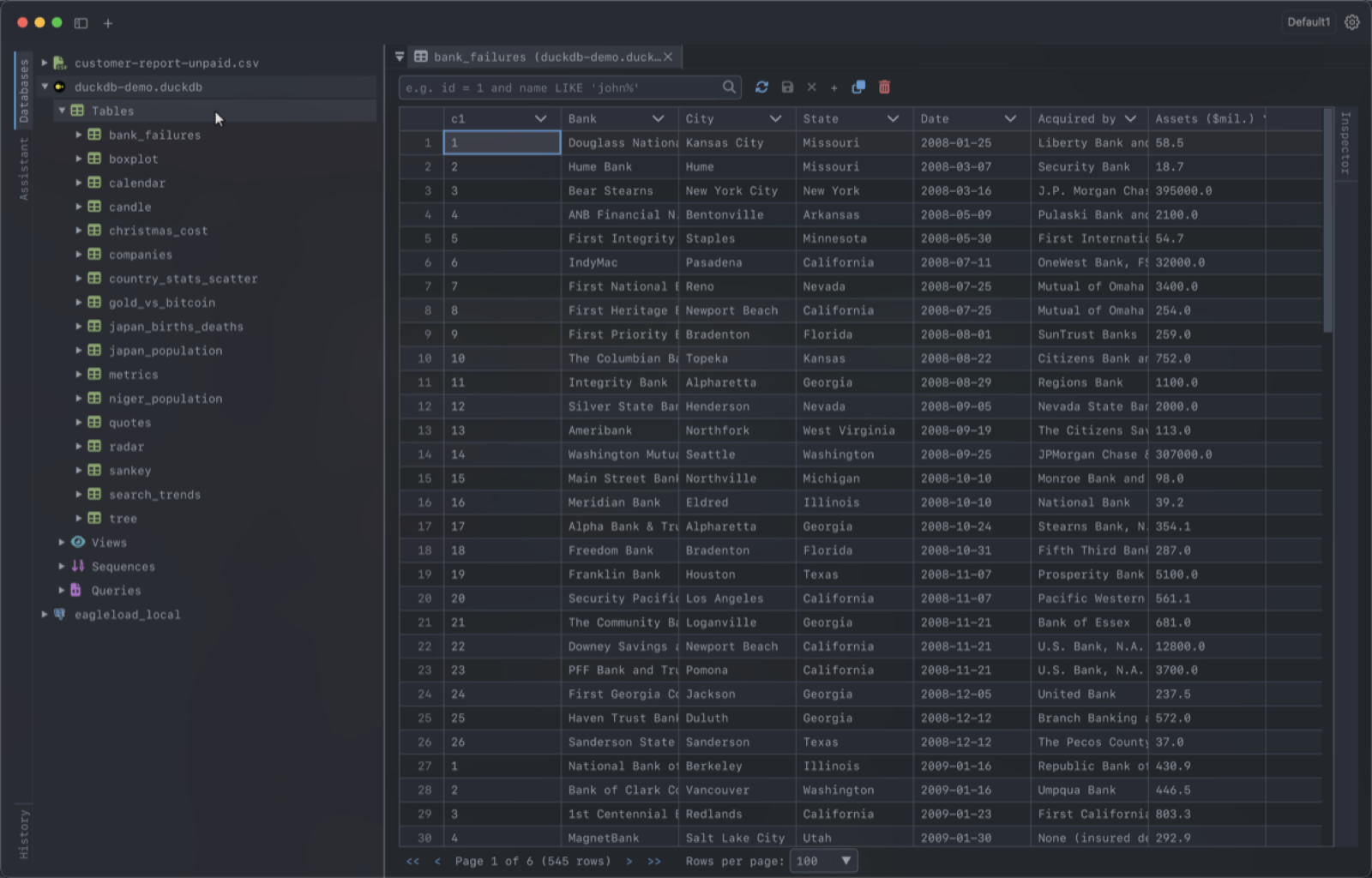
The table viewer pages through data rather than loading everything: pick 10 to 500 rows per page at the bottom, and move with the arrow buttons. The row count is the real total, not the size of the page.
Click a column header to sort. Sorting is done by the database, so it applies across every page, not just the rows on screen.
NULL is shown distinctly from an empty string — worth knowing before you go hunting for a bug that isn’t there. Booleans render as checkboxes.
Filtering
The filter box takes a SQL WHERE expression, without the WHERE:
status = 'active' and created_at > '2024-01-01'It autocompletes column names and SQL keywords as you type. Press Enter or click the magnifier to apply; the row count updates to match.
You can also right-click a cell and filter by its value, which appends the right condition — including IS NULL for null cells — instead of making you type it.
Following foreign keys
Foreign-key columns are marked with a key icon in the header — hover it to see which table the column references — and their values are coloured like links.
Hover or select one of those cells and a small jump button appears at its right edge — click it and the referenced table opens in a new tab, filtered to the matching row. It’s the quickest way to answer “which customer is this order for?” without writing a join. The same thing is on the right-click menu as Go to table.
The entry only appears on columns that actually have a foreign key, and not on null cells. Foreign keys are read from the database on connect, so SQLite, DuckDB, PostgreSQL, MySQL, MariaDB and SQL Server all support it.
Editing
Cells are editable in place. Edited cells are highlighted, and nothing is sent to the database until you save:
- Save (or Cmd+S / Ctrl+S) applies the changes
- Reject discards them
- + adds a row, and the clone button duplicates the selected one
- The bin marks selected rows for deletion
Saving opens a confirmation dialog containing the exact SQL DearSQL is about to run — INSERTs, UPDATEs and DELETEs, in order. The SQL is editable, so if a generated statement isn’t what you want, fix it before it runs. Nothing executes until you press Execute.
Statements are keyed on the table’s primary key. For a table without one, DearSQL matches on all column values, which is safe but can match more than one row if you have exact duplicates.
On a read-only connection none of this is available: cells can’t be edited, the add, duplicate and delete buttons are disabled, and the toolbar shows a Read-only marker.
Inspector
The strip on the right opens the inspector, which has three tabs:
- Value — the selected cell in a larger editor, for JSON, long text, or anything that doesn’t fit a grid cell. Edit and Apply, or Revert.
- Metadata — the table’s columns with their types, nullability and primary keys, filterable by name.
- DDL — the table’s
CREATE TABLEstatement with its constraints and indexes, ready to copy. It is the server’s own definition where it has one (SHOW CREATE TABLEon MySQL,DBMS_METADATAon Oracle, the stored SQL on SQLite and DuckDB); PostgreSQL’s is rebuilt from its catalog, including identity and generated columns, check constraints and comments. Views, MongoDB collections and Redis keys don’t have one.
CSV files
DearSQL opens CSV files directly — Open CSV File… from the sidebar’s context menu. The file is loaded through DuckDB, so you can query it with SQL like any other table. Double-click the file node to view its contents.