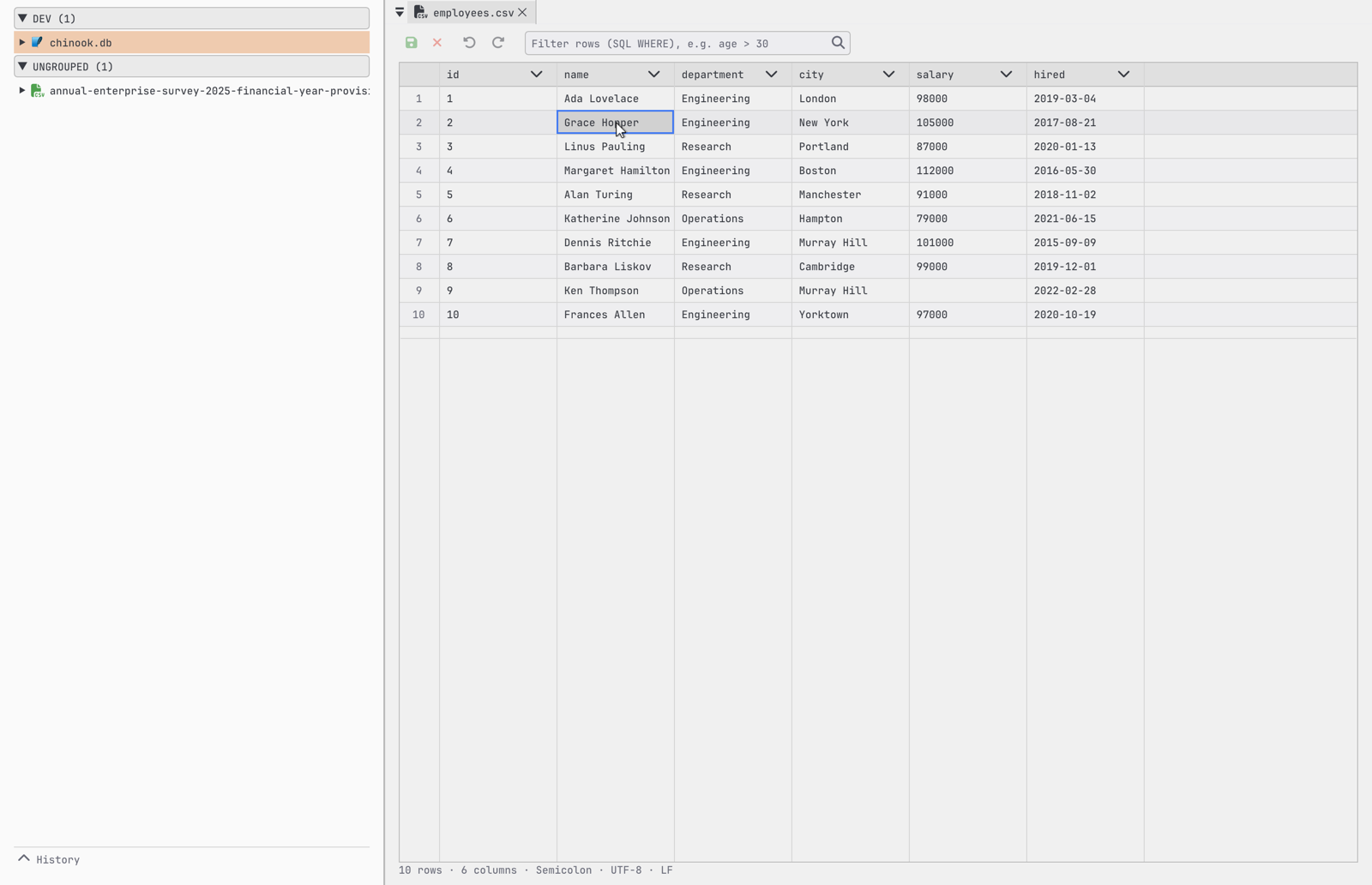
DearSQL opens CSV files in an editor built for them. Choose Open CSV File… from the sidebar’s context menu, or open a .csv from Finder or the command line. The file shows up in the sidebar, and double-clicking it (or Open in CSV Editor on its context menu) opens it in a tab.
Saving keeps the file’s format
When a file opens, DearSQL works out how it is written: the delimiter (comma, semicolon, tab, pipe, colon), the quote character and whether every field is quoted, the line break (LF, CRLF or CR), whether the last line ends with one, and the encoding — UTF-8 with or without a byte-order mark, UTF-16, or Windows-1252. Save (the green button, or Cmd/Ctrl+S) writes the file back the same way, so a semicolon-separated Windows file stays semicolon-separated with CRLF line breaks, and only the cells you changed differ. Values are kept exactly as text: 007 stays 007. The bar under the grid shows what was detected.
Nothing is written until you save. The file is written to a temporary file first and then swapped in, so a failed save never leaves a half-written file. The red button next to Save discards your changes and reloads the file.
Rows with fewer fields than the widest row are padded with empty fields; the status bar says how many, and saving writes them padded.
Editing
Double-click a cell, or select it and start typing, to edit it. Enter commits, Escape cancels. Long and multi-line values open in a larger editor.
- Paste — copy cells from a spreadsheet (or from another table in DearSQL) and paste with Cmd/Ctrl+V: the block fills the cells from the selected one, adding rows and columns if it runs past the edge. A single value pasted onto a selection of several cells fills all of them.
- Delete or Backspace empties the selected cells.
- Insert rows — right-click a cell and choose Insert Row Above or Insert Row Below.
- Select whole rows by clicking their row numbers; Shift-click extends the selection.
- Undo and redo — the toolbar arrows, or Cmd/Ctrl+Z and Cmd/Ctrl+Shift+Z.
Sorting
Sort from a column’s header arrow. Sorting reorders the rows themselves — it is a change you save, like sorting in a spreadsheet, not a view. Numbers sort by value and come before text; empty cells go last.
Filtering with SQL
The filter box takes a SQL WHERE condition, run by DuckDB over the file — age > 30, city IN ('Oslo', 'Bergen'), name ILIKE '%son'. Matching rows stay editable, and saving writes them back into their place in the file. Right-click a cell and choose Filter by value to add a condition for it.
DuckDB reads the file as saved, so save your changes before filtering. While a filter is on, inserting rows and sorting are off; clear the filter to use them.
Querying with SQL
The CSV’s connection is a read-only DuckDB view of the file, named after it (orders.csv is the view orders). Right-click the file and choose New SQL Editor to join it, aggregate it, or query it like any table. The view always reads the file as saved, so a query sees your edits once you save them.