DearSQL connects to Amazon S3 and to any service that speaks the S3 API — Cloudflare R2, MinIO, Wasabi, VersityGW, Backblaze B2, DigitalOcean Spaces and others. Buckets show up in the sidebar next to your databases, and each one opens in a tab where you can browse folders and move files in and out.
Connecting
Click New Connection and pick S3 Storage as the type.
- Endpoint — the host of the S3 API. Leave it empty for Amazon S3. For Cloudflare R2 it is
<account-id>.r2.cloudflarestorage.com; for Wasabi,s3.<region>.wasabisys.com; for a local MinIO or VersityGW,localhostwith its port. You can paste a full URL such ashttps://…, and DearSQL takes the host and protocol from it. - Port and Protocol — 443 and HTTPS for hosted services; local servers usually run plain HTTP on their own port (MinIO uses 9000).
- Region — the bucket region, such as
eu-west-1. Cloudflare R2 usesauto. Empty meansus-east-1. - Access Key and Secret Key — an access key pair with permission to list buckets. They are stored encrypted, like database passwords.
DearSQL lists your buckets to check the keys, so a key that is scoped to a single bucket and cannot list buckets will not connect. SSH tunnels are not offered for S3 connections.
Buckets
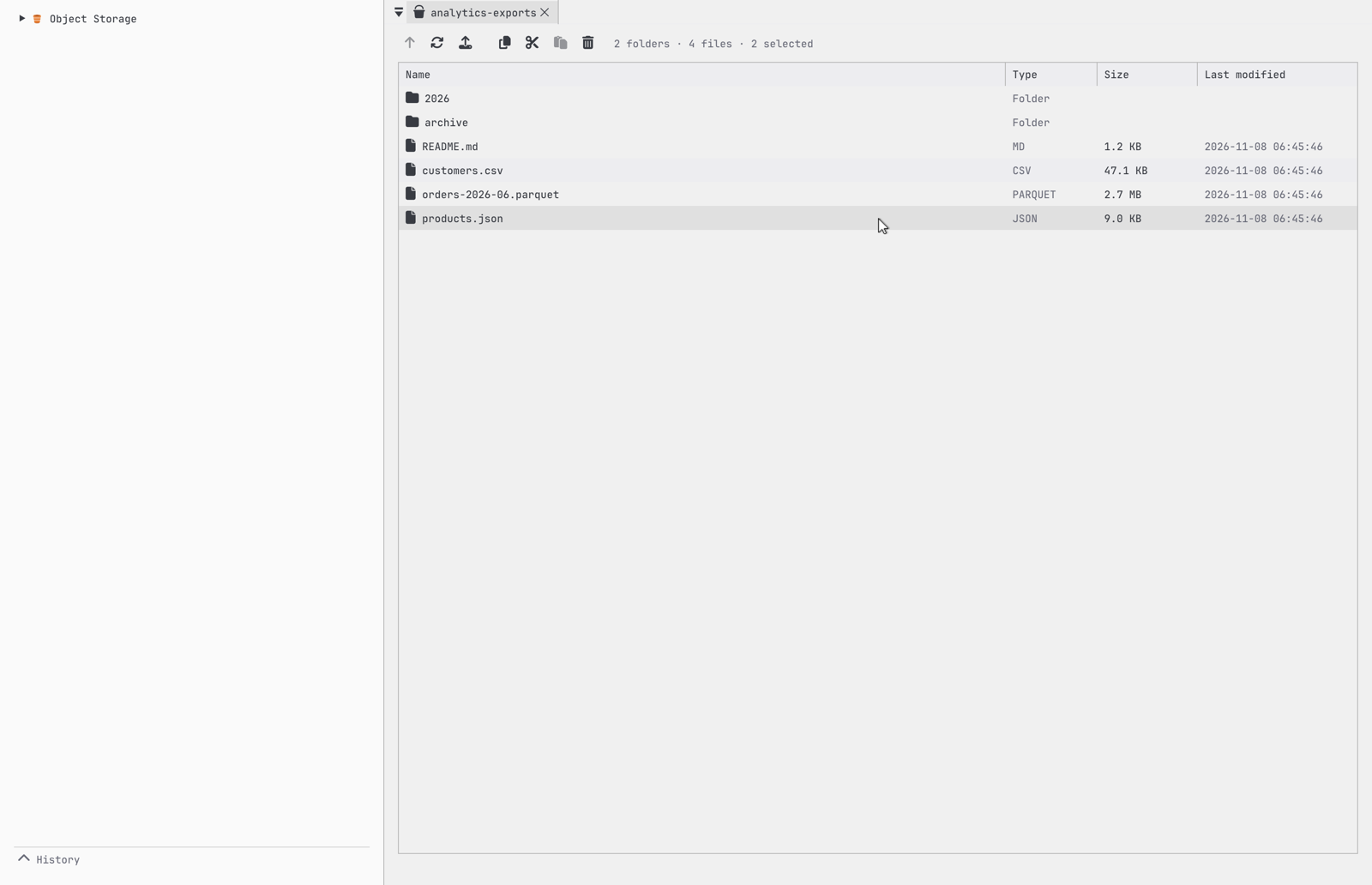
Expand the connection in the sidebar to see its buckets. Double-click a bucket, or choose Open from its context menu, to browse it in a tab. Right-click the connection and choose Create Bucket… to make a new one; Delete Bucket… on a bucket removes it, which S3 only allows once the bucket is empty.
Browsing
S3 has no real folders: keys such as reports/2026/may.csv are shown as a reports folder holding a 2026 folder. Double-click a folder to open it, and use the ↑ button or the path at the top of the tab to go back up. Folders come first, then files with their type (from the extension), size and last-modified time. Large folders load 1,000 entries at a time; click Load more at the bottom of the list for the next page.
Working with files
- Upload — the upload button puts a file from your computer into the folder you are looking at. Big files are sent in parts, so there is no 5 GB limit.
- Download — double-click a file, or right-click it and choose Download…, and pick where to save it.
- Share — Copy Share Link puts a signed link on the clipboard that anyone can open for 1 hour, 1 day or 7 days, without your keys.
- Details — the size, ETag, content type, version and any custom metadata of a file.
- Delete — deletes the selected files and folders (a folder with everything under it) after you confirm.
Uploads, downloads and copies show their progress in the toolbar, and transfers can be cancelled. Only one operation runs at a time in each tab.
Selecting, copying and moving
Click a row to select it, Cmd-click (Ctrl-click on Windows and Linux) to add or remove one, and Shift-click to select a range, or drag across rows; Cmd-A selects everything listed and Escape clears the selection. The toolbar’s Copy, Cut, Paste and Delete buttons act on the selection, and so do Cmd-C, Cmd-X, Cmd-V and Delete (or Cmd-Backspace), and the same items in the right-click menu.
Copy or cut, open another folder or another bucket of the same connection, and paste: a copy keeps the originals, a cut moves them. Pasting a copy into the folder it came from names it name copy.ext. The copy happens on the server, so big files don’t pass through your computer, except on the few S3-compatible gateways that refuse server-side copies, where DearSQL downloads and re-uploads each file instead.
From the terminal and coding agents
S3 connections work with the dearsql commands and the MCP server too (see Command line). list_objects lists your buckets or one folder, and read_object returns the start of a file as text, so an agent can look inside a CSV or a log. One-shot commands and dearsql --mcp --allow-writes also have copy_object, delete_object, upload_object and download_object.
dearsql list_objects -c "My R2" --bucket exports --prefix 2026/
dearsql read_object -c "My R2" exports 2026/06/orders.csv --max-bytes 2000
The agent in DearSQL’s assistant chat has them too, and asks for your approval before copying, moving, deleting or uploading.